The MagicDoor's Help

Unlock the full potential of property management with MagicDoor's Help. Dive into expert insights, practical guides, and industry tips to streamline operations, enhance tenant experiences, and scale your business with confidence.

The MagicDoor's Help
Users
How to Set Up Auto-Pay
How to Invite an Owner to Their Portal
How to Help Tenants Access Their Portal if They Forget Their Password
How to Set Property Manager Permissions
How Tenants Can Add or Update a Payment Method
How to Navigate Your Tenant Portal
Accounting
How to View & Manage Bank Accounts
How to Add Bills on MagicDoor
Property Bill vs. Company Bill
How to Pay Vendor Bills
How to Set Your Withdrawal Date for Rent Deposits
Settings
How to Edit Property Manager Notification Settings
How to Get a QR For Your Company Website
How to Create & Use Magic Tags
How to Select Owner Manager or Third-Party Manager
How to Edit Leasing Contact Information on Your Company Website
How to Set Up & Charge Management Fees
How to Customize Late Fee Settings
How to Edit Your Company Website URL & Theme
How to Edit & Customize Your Rental Application
How to Use Overrides to Customize Settings
How to Update Your Company Email Address & Phone Numbers
Choose Where to Receive Rent Payments
How to Link a Bank Account Using Plaid
How to Enable Partial Rent Payments
How to Enable Online Rent Collection
How to Set Up Rent Payment Settings
Rent Payment Failure Fee
How to Add a Debit or Credit Card to Your Account
How to Maximize Profit from Rental Application Fees
Charging Management Fees as a Property Manager
How to edit your company site's URL and Theme
How to Set Up Grace Balance for Late Fees
How to Separate Ledgers for Multiple Tenants in the Same Unit?
How to Set Up Payment Accounts & Rent Collection Settings
Leasing
Upload & Store Lease Agreements
How to Set the Owners of a Property
How to View Unfinished Rental Applications
How to Send a Lease Renewal Manually
How to Extend a Lease
How to End a Lease
How to View Leases by Portfolio and Property
How to Add a Tenant to a Lease
How to Separate Ledgers for Multiple Tenants in the Same Unit
How to Start an Eviction Process
How to send New Documents
How to Create a Lease
Listing
How to List & Publish a Property Listing on Your Company’s Website
How to Syndicate Listings to External Platforms
Reports
How to Download Reports
How to Track Outstanding Tenant Balances Using the Delinquency Report
How to Use the Accounts Payable Report to Track Unpaid Invoices & Maintenance Costs
Maintenance
How to Close a Maintenance Request
How to View Work Order Communications
How to Create a Bill For a Work Order
How to Convert a Maintenance Request to a Work Order
How to Create a Maintenance Request Category
How to Set a Priority for a Maintenance Request
How to Edit a Work Order
How to View Open Work Orders
How to Create a Maintenance Request
How to Create a Work Order
How to View All Maintenance Requests
How to View Vendor Work Orders
How to Create a Bill for a Vendor
How to Add a Vendor
How to Add a Vendor Bank Account
How to Generate 1099s for Vendors
How to View Vendor Information
How to Delete a Vendor
How to Set Up & Use AI Runbooks
Communications
How to Send Announcements to Tenants, Owners, & Vendors
Associations
How to Manage Association Violations & Billing
Help/Associations/How to Manage Association Violations & Billing

How to Manage Association Violations & Billing


This help article explains how to manage association violations and bill tenants for related fines in MagicDoor.

Inside, you'll find:

  • Navigating to the Association Violations section
  • Adding a new violation with full details
  • Editing violations and uploading supporting documentation
  • Creating a lease bill tied to a violation fine

Use this article as a reference when recording HOA or association violations and charging tenants for associated fines.

Step 1: Navigate to Association Violations

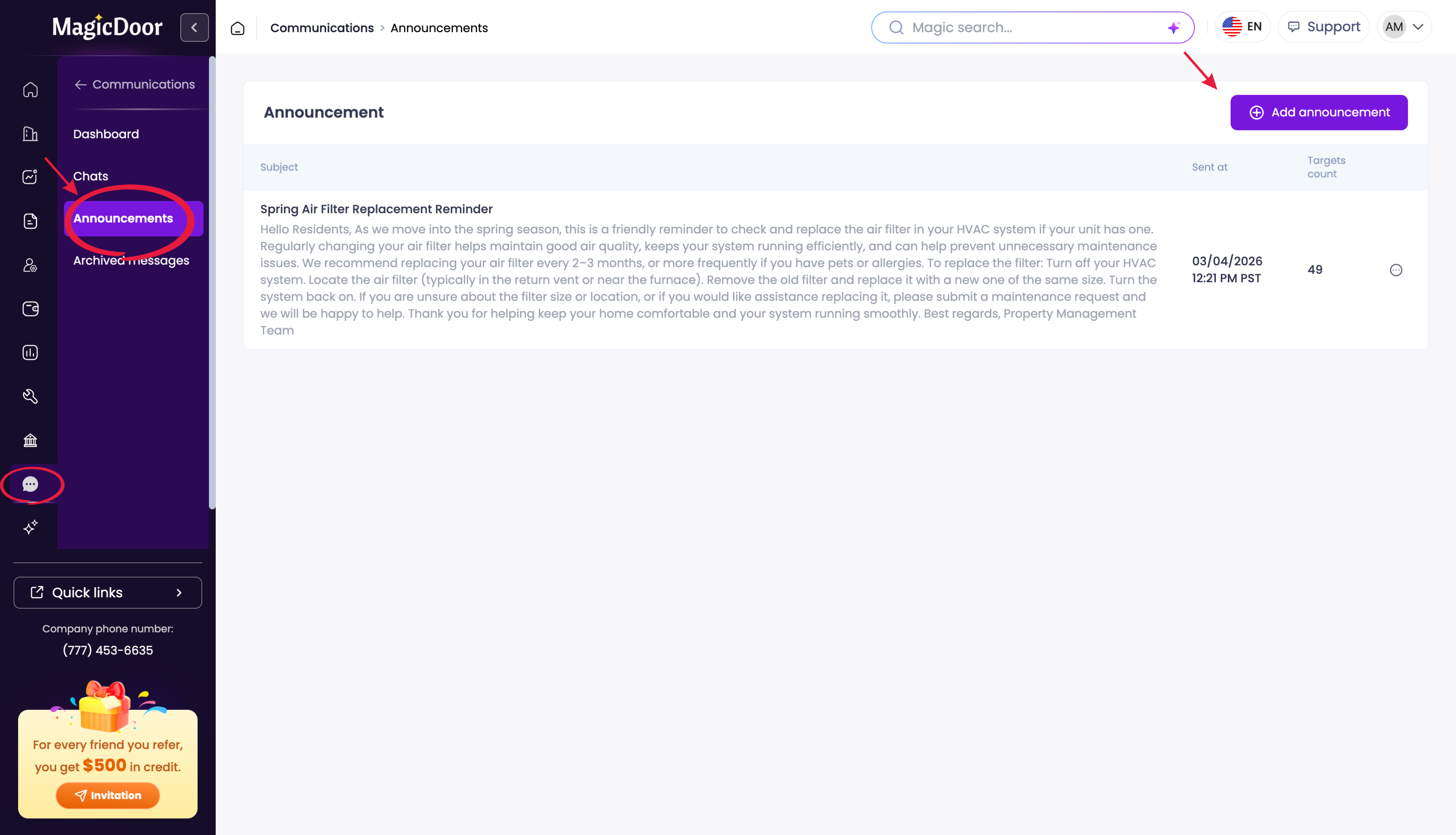
To begin, log into your account and locate the left-side navigation menu.

  • Scroll down to Associations.
  • Click Violations to view a list of all current violations.
image

Step 2: Add a New Violation

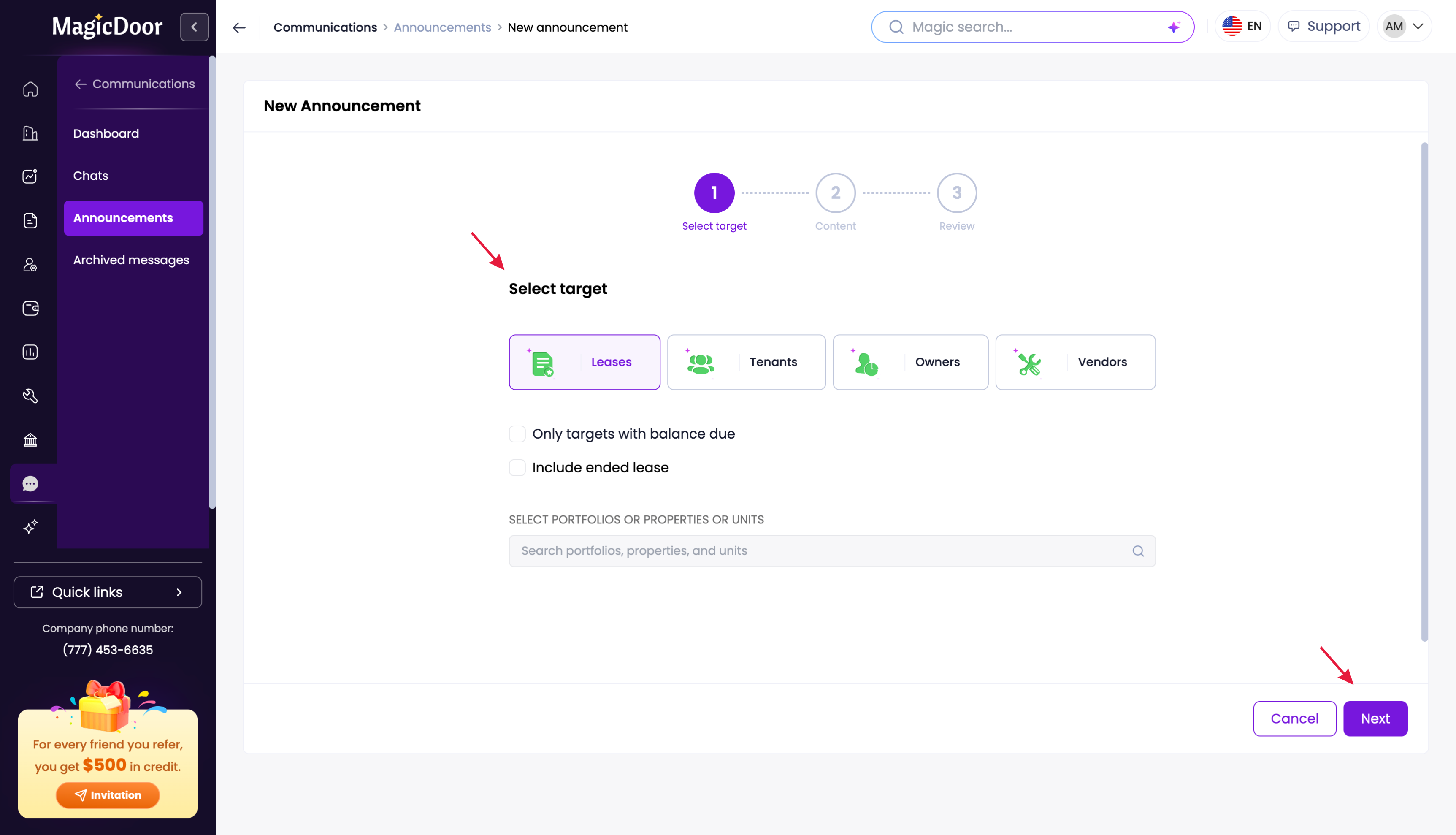
To record a new violation, click Add Violations in the upper right corner of the screen. Fill in the following information:

  • Description: enter the details of the violation
  • Target: select whether this applies to a Property, Unit, or Lease
  • Details: input the Vendor, Violation Date, Violation Receive Date, and Fix By date
  • Status & Reference: update the current status and add a Violation Reference Number if applicable

Once all fields are complete, click Add Association Violation to save.
image

Step 3: Edit Details & Upload Files

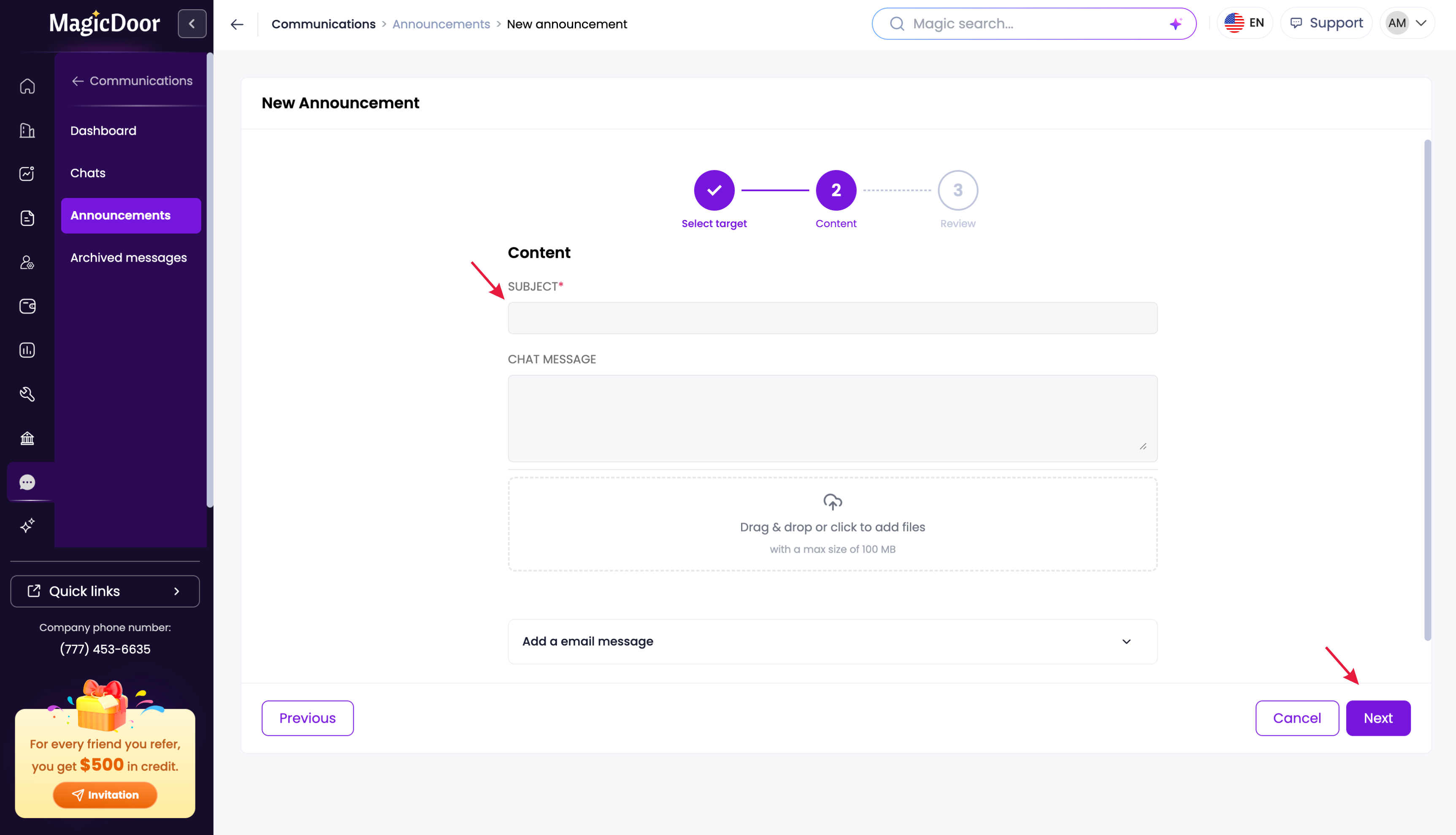
After creating a violation, click on any individual item in the list to open its full details.

  • To make changes, click Edit Violation, update the relevant fields, and press Submit.
  • To attach supporting files, drag and drop documents directly into the violation record and press Submit to save them.
image

Step 4: Bill the Violation to the Lease

If you need to charge a tenant a fine for a violation, you can create a bill directly linked to the record. Inside the violation details, click Lease Bills in the top navigation bar, then follow these steps:

  • Under Chart of Accounts, scroll to Association Fees and select Association Fine.
  • Enter the Amount and a Description of the fine.
  • Select Property Bill to assign the charge to the tenant.

Click OK to finish. The bill will then be accessible under the lease bills section.

Need More Help?

If you have questions about association violations or billing, our support team is here to help.

👉 Contact us anytime at support@magicdoor.com

📞 Call us at: (888) 887 - 8780 (9:00 AM – 5:00 PM PST)