The MagicDoor's Help
Unlock the full potential of property management with MagicDoor's Help. Dive into expert insights, practical guides, and industry tips to streamline operations, enhance tenant experiences, and scale your business with confidence.

How to Create a Bill For a Work Order
This help article explains how to create a bill directly from a work order in MagicDoor.
Inside, you’ll find:
- Where to locate a work order from the Maintenance section.
- How to generate a draft bill from an existing work order.
- What information is required before submitting a draft bill.
- How and when to convert a draft bill into a finalized bill.
- How vendor assignment affects bill status and processing.
Use this article as a reference when turning completed work orders into payable bills.
Step by Step: Create a Bill for a Work Order on MagicDoor
Follow these steps to generate and manage bills for your work orders:
1- Navigate to the work order:
- Click on Maintenance in the left sidebar
- Select Work Orders from the menu
- Locate and click on the specific work order
2- Create a draft bill:
- Select the Bills tab
- Click on Add Draft Bill

3- Set up the bill:
- Complete all required fields in the form
- Review the information for accuracy
- Click Submit to create the draft
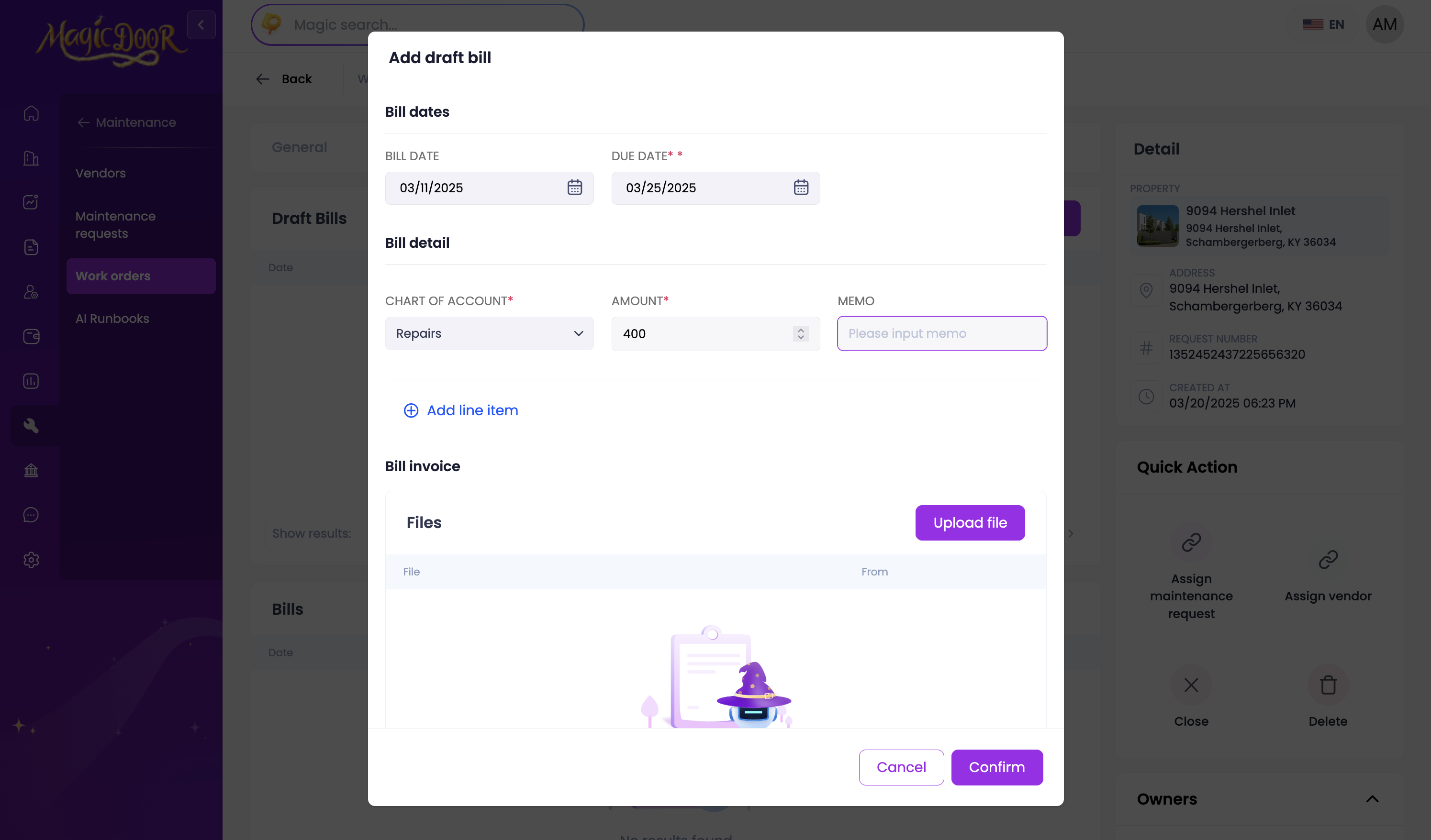
4- Finalize the bill:
- When ready to process, locate the draft bill
- Click the Convert to Bill button
- Assign the bill to a vendor if needed

Note: Bills remain in draft status until assigned to a vendor. This allows for review and adjustments before final processing.
Need More Help?
If you have questions, our support team is always here to assist.
👉 Contact us anytime at support@magicdoor.com